
Getting started
Create your first leaderboard
Turn your group’s next match into the start of an Elo leaderboard. This guide takes a fictional Friday Night Pool group from an empty board to its first result.
You can follow the same steps for table tennis, chess or another game with two players and a recorded result. You’ll need a Rankerelo account and at least two player profiles to save a match.
The screenshots use fictional players and an illustrative invite link. Use your own board’s link when inviting friends.
1. Create a private leaderboard
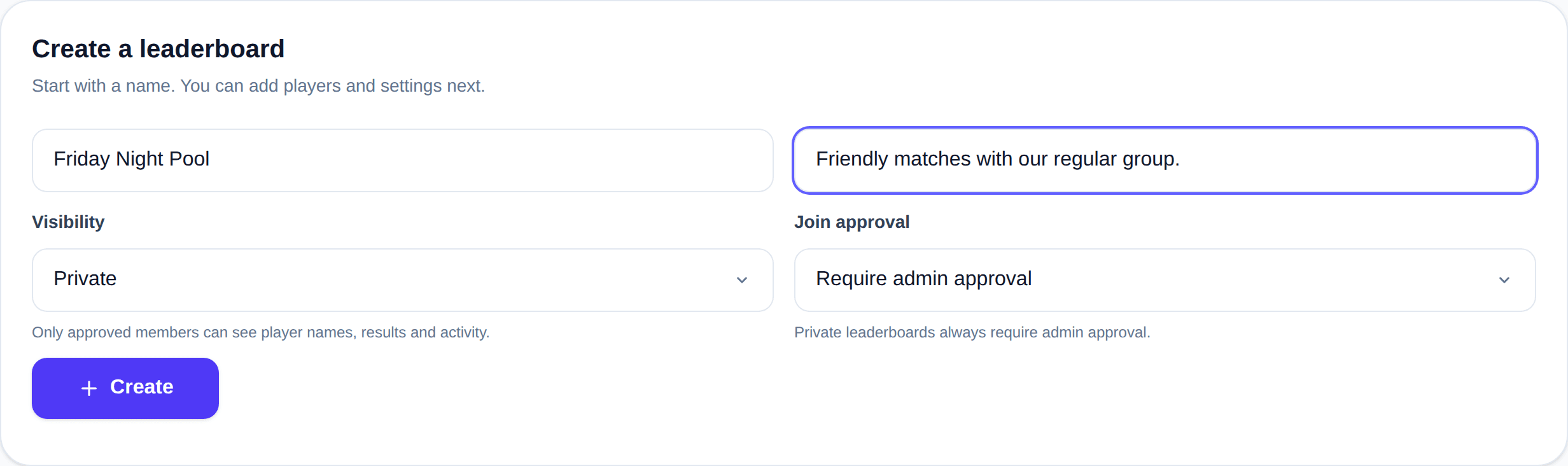
Sign in or create an account, then open Dashboard. In Create a leaderboard, give your board a name people will recognise, such as “Friday Night Pool”. Add an optional description to explain which matches count.
For a friends’ group, keep Visibility set to Private. New boards start private, and private boards require an owner or admin to approve access. Click Create to open the board. Your account is added as the owner and the first player.
2. Add the people who play
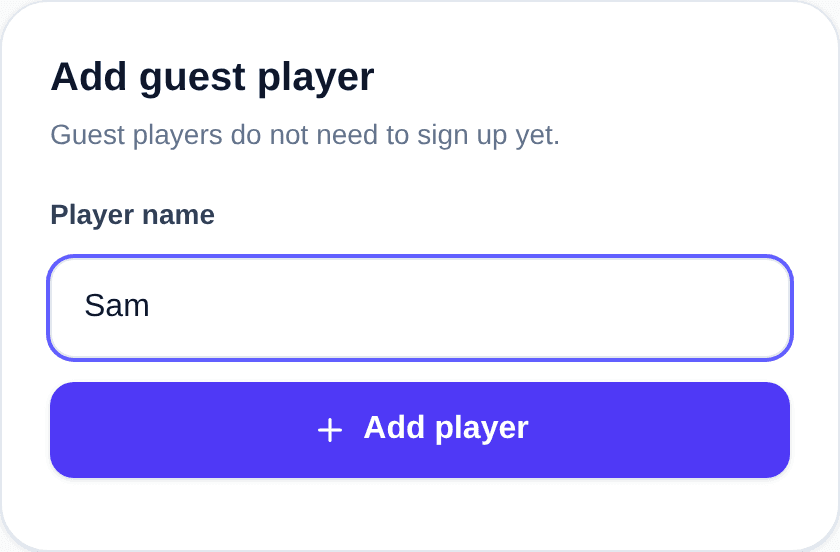
On the board, find Add guest player. Enter a name and click Add player, repeating for the rest of your group. The example adds Sam and Jordan alongside the owner, Alex Example.
Guest players don’t need an account, so you can start recording your group’s matches straight away. Let people know before adding them, use agreed nicknames where appropriate, and avoid adding private details to names or descriptions.
3. Invite your group
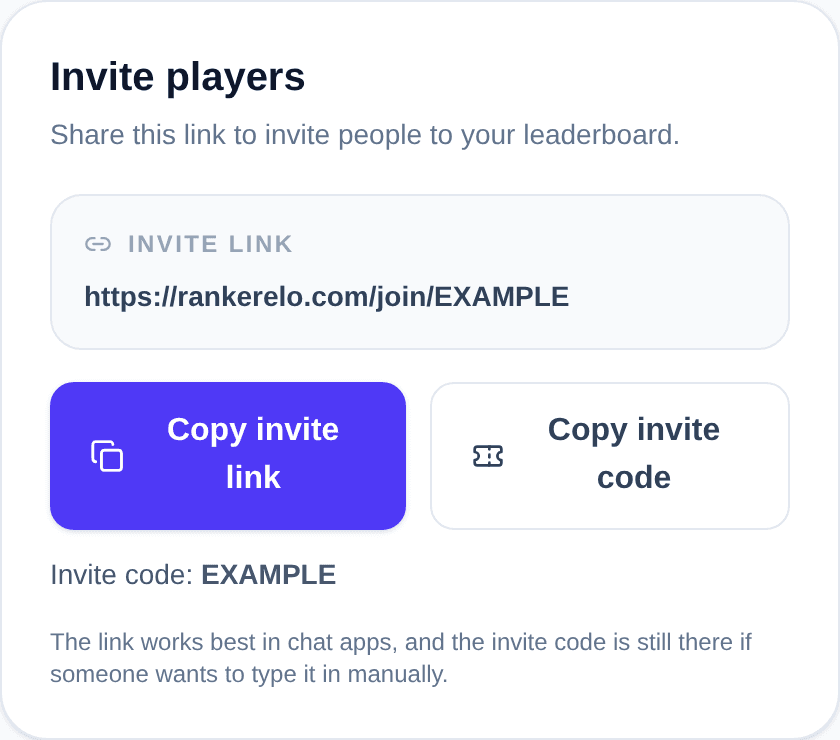
Find Invite players and click Copy invite link. Share it in your group chat. People can also enter the invite code using Join a leaderboard on their dashboard.
For a private board, invitees sign in and request access. Approve their requests from your dashboard or the board’s pending join requests. Sharing an invitation does not make a private board public.
Once approved, a participant who already has a guest profile should request to claim that player instead of making a duplicate. An owner or admin approves the claim. Someone without an existing profile can create their own under Set up your player.
4. Record your first match
As the owner, open Record match, choose the two players and enter their scores. In the example, Alex Example beats Sam 7–4. Check the players and scores before clicking Save result.
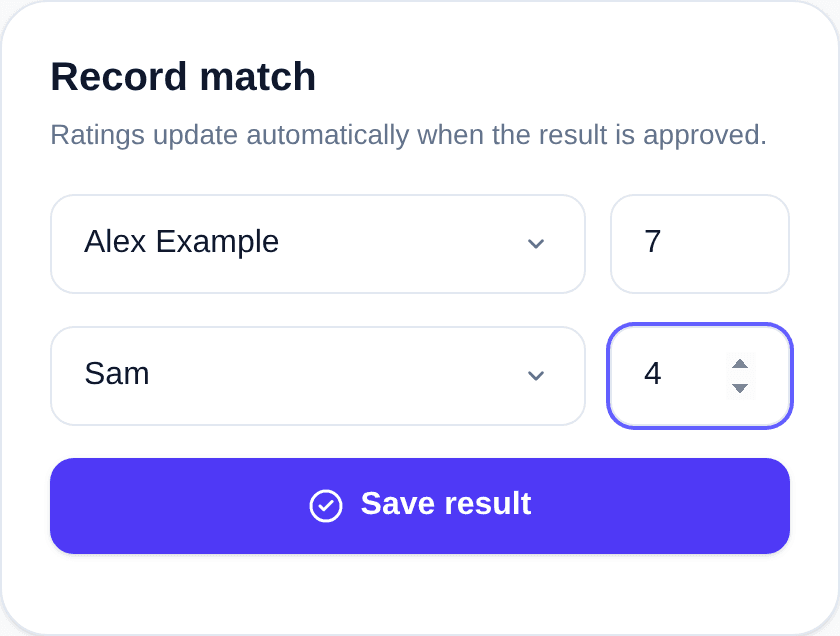
Owner and admin submissions are approved immediately. Other members can submit results involving their own claimed player; depending on the board’s approval settings, those results may need an admin or eligible opponent to approve them. Pending results do not change ratings.
If saving appears interrupted, check Recent matches or Match history before entering the same result again.
5. Check the updated standings
An approved result updates the players’ Elo ratings, win/loss records and match counts. In the example, Alex rises from 1000 to 1016, Sam falls from 1000 to 984, and Jordan stays on 1000 because they did not play.
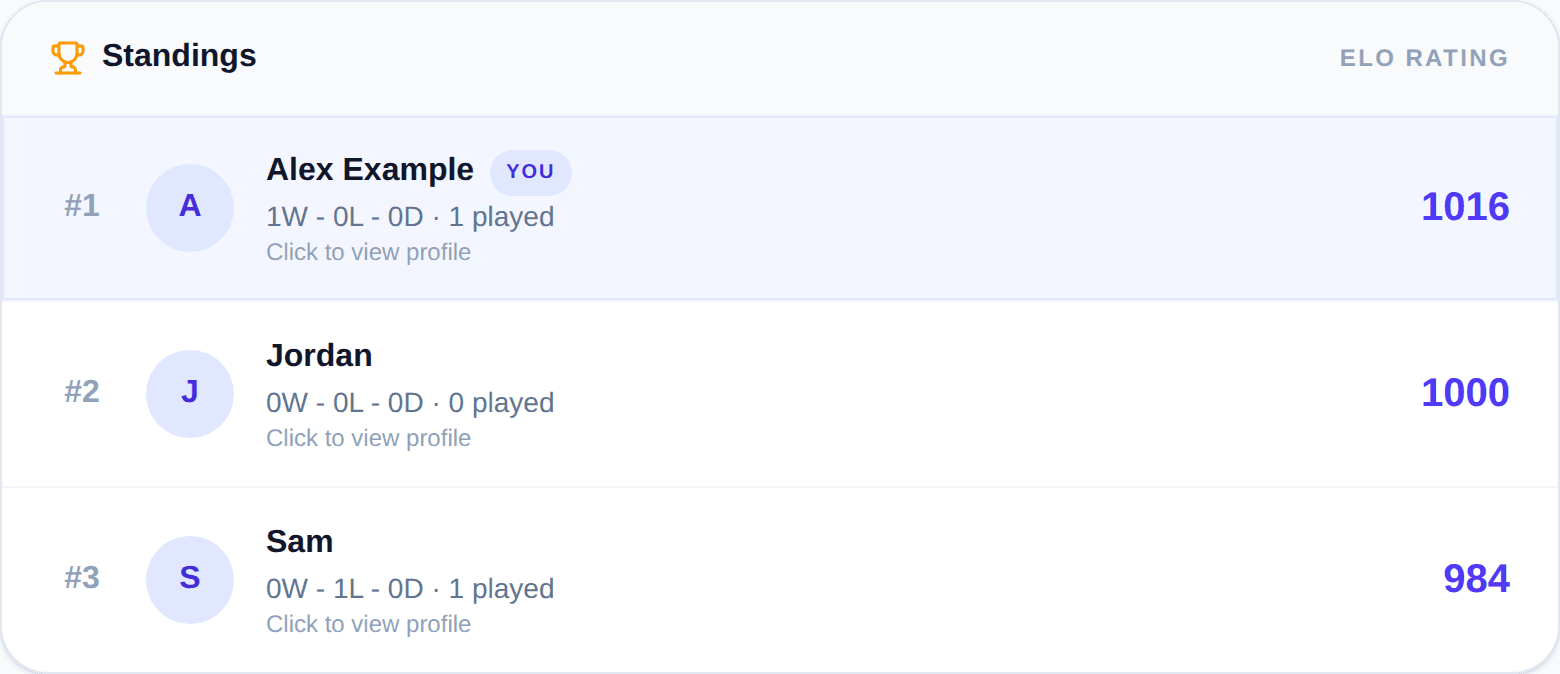
Elo changes depend on the players’ ratings, whether the result is a win, draw or loss, and the board’s K factor. A bigger score margin does not itself award more Elo points. Read How Elo ratings work for the calculation and a worked example.
Ready for your group’s next match?
Start private, add your players and agree which matches count. You can adjust access, result approval and rating settings as your group settles in.
Create your account